ClickUp Introduction
The KQM HSR TC Staff is now using ClickUp to facilitate our project tracking and management. ClickUp is available in your browser, as a desktop app, or on your phone. Please make an account using an email/name that you do not mind other staff potentially seeing.
Please DM @cynematic your email to be added to the ClickUp.
ALL TC STAFF - Please add your information to the TC Staff Contact Sheet, found at the bottom on the left navigation bar.
WEBSITE EDITORS - Please remember to log all changes in the Website Changelog found on the left navigation bar, even if the edits you make are small.
Navigation Basics
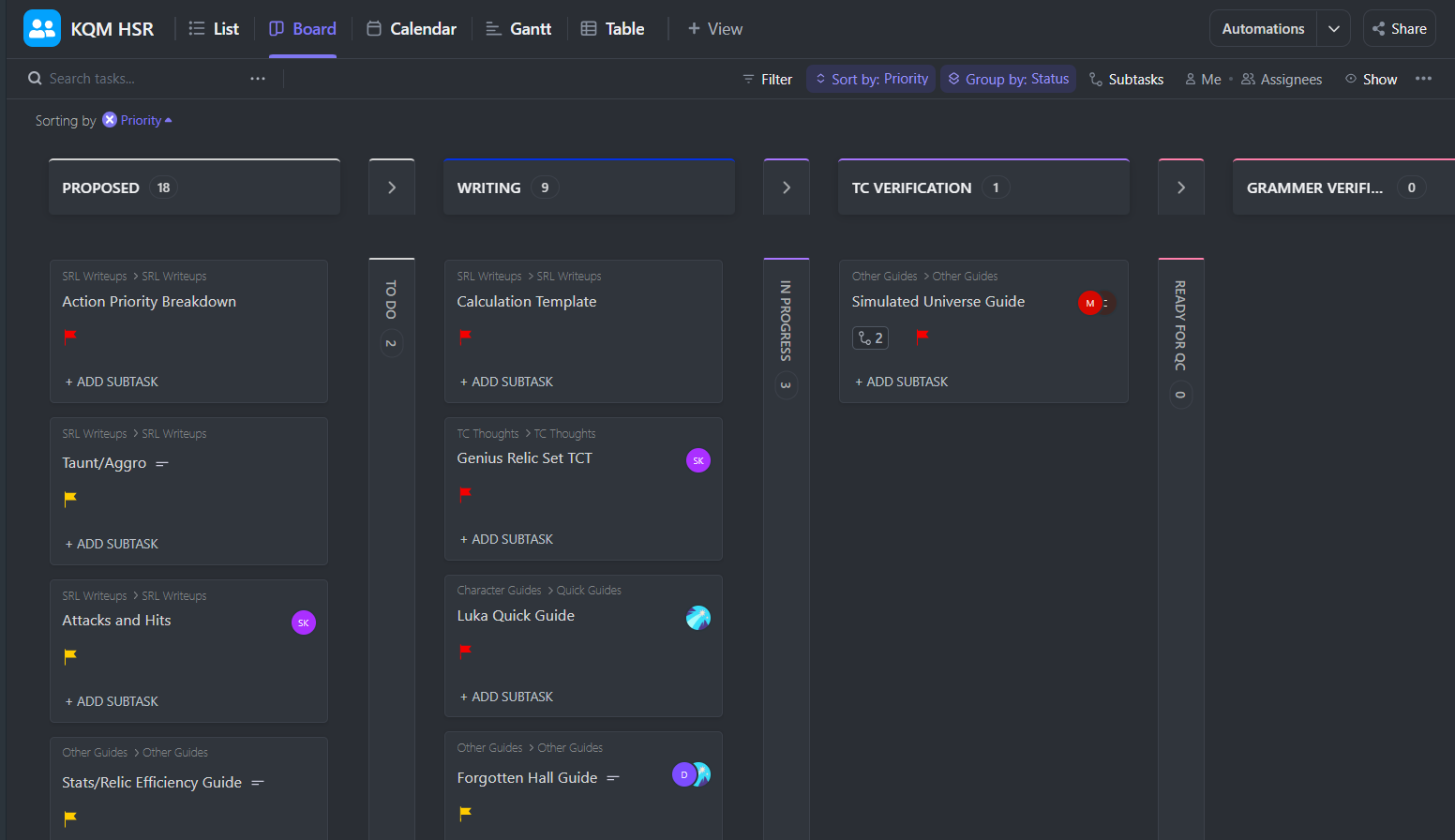
When you click on the “KQM HSR” Space on your left navigation bar, you will likely be greeted with a gigantic list of tasks. We will primarily be operating in Board view, so make sure to switch to Board view along the top options, as seen below.

Board view will present you with multiple different Status Columns that show which phase of productions any given product/task is currently in. When a task is ready to move to the next phase, it can simply be dragged into the relevant new Status Column.
Please avoid messing with the filters as they may change what others see as well.
Creating Tasks
To create a new task, start by finding the Folder and Project that your new task belongs to in the left-side navigation bar.
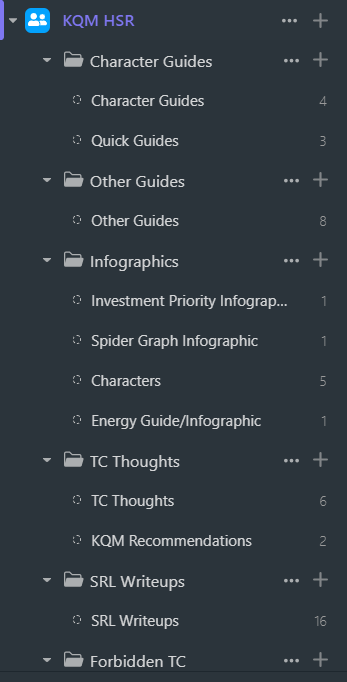
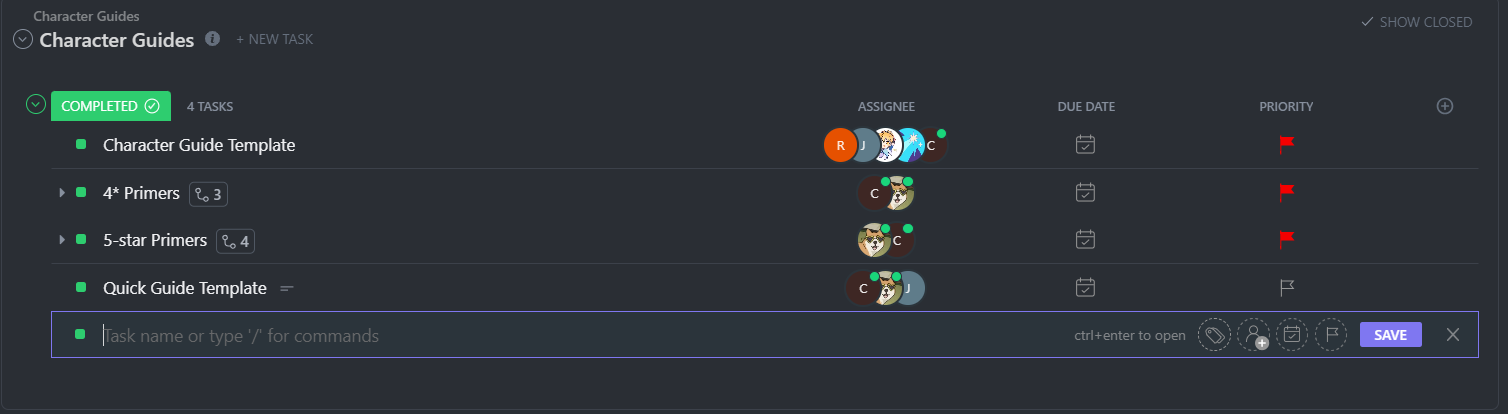
After clicking on the relevant Project, you will be able to add a new task to that Project. If you need to create a new Project simply left-click the relevant Folder and “Create New List”.
When adding a new task, you will be able to input a name for the task (this is what will show up on the Board View), as well as assign it to the relevant people, denote a due date, and set its priority.
Modifying Tasks
When you need to modify a task in some way, you can click the task in Board View to open up a more detailed view where you can add subtasks, assign people, change the due date, change priority, and more.
You can also do this straight from the Board view with the popular functions as seen below.
| Icon | Function |
|---|---|
 | Create Subtask |
 | Change Priority |
 | Assign People |
 | Set Due Date |