GitHub Basics
"GitHub is a code hosting platform for version control and collaboration. It lets you and others work together on projects from anywhere."
To be short and sweet, GitHub is a place people can upload their projects and have old versions be reverted.
Terminology
Repository
It's where GitHub holds the files and folders for a project.
Branch
It's a different version of a repository. Other people can have their own branches.
Commit
When you make changes on your repository, these changes can be "committed." You can send your commits to GitHub.
Local Version
The files on your computer, not online, are called your local files/changes.
Remote
You can move changes from your local version on your computer, to the remote version on GitHub that is online.
Push
It is a process that moves your local, committed changes to the online version that is held on GitHub.
Pull
Pulling is a process where you grab changes (fetching) and then merge them to a different branch. If someone has changed the original project, you want to Pull those changes to your local version.
Pull Request
These are proposed changes to a repository that have to be approved before they are merged.
Fork
A personal copy of a repository is called a Fork. You can make changes on your fork without them showing up on the original repository. You can submit a pull request to the original repository.
Setting up GitHub
- GitHub Desktop
- Visual Studio Code
- Node, version 16.2 will work with all of our projects
- Recommended: npm, for deploying local versions
Fork
Once you have these downloaded, you can go to the KQM Repositories and Fork the project you want to contribute to. Doing this copies the repository and makes a version that you can change without impacting the upstream project.
Genshin Impact Theorycrafting Library (TCL) Repository

Genshin Impact Compendium Repository
Genshin Impact: Genius Invokation Deck Site Repository
Honkai: Star Rail Theorycrafting Library (SRL) Repository
KQM Knowledge Bot (Kikin) Repository
You can name the repository to whatever you like on your fork. You will also want to keep the "master or main branch only" box checked.

Updating Your Fork
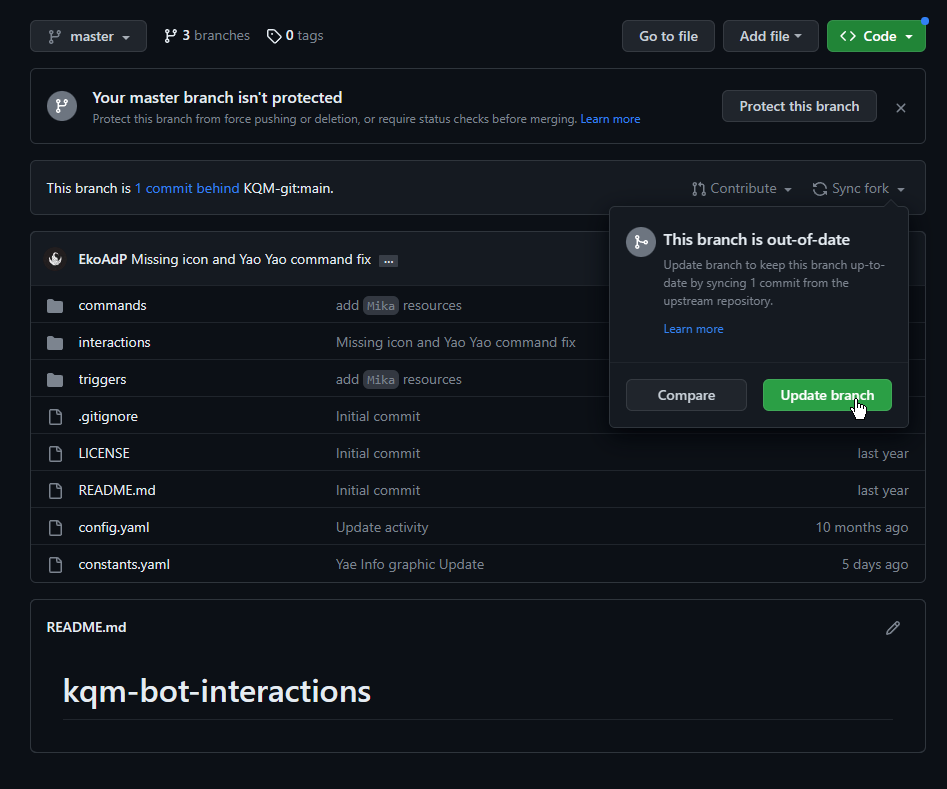
Occasionally, KQM will accept Pull Requests from other contributors which can leave your Fork or Local Version outdated. Open your Fork and sync your Fork before every session! You can use GitHub Desktop to Pull changes from the Remote onto your own Fork.
You should do this every session!
Cloning
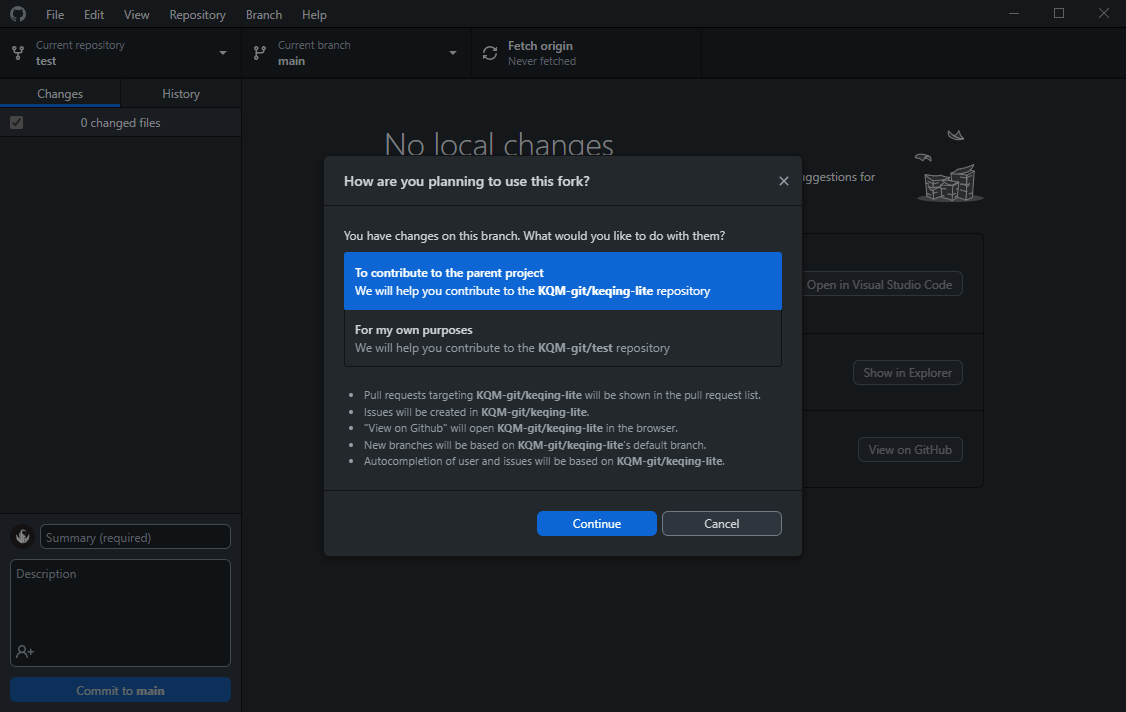
You will want to clone your forked version. Choose the location you want your local copy on GitHub Desktop.
Make sure you select the option to contribute to the parent project! This allows GitHub Desktop help you make sure your Fork is up to date with our upstream repository.
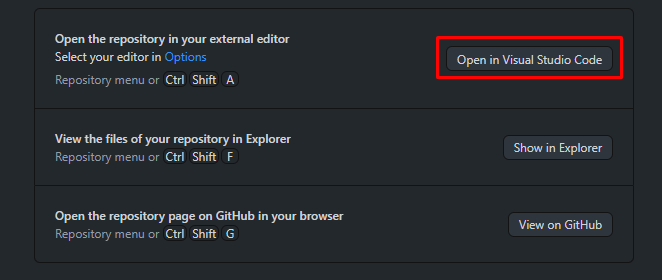
You can now open these local files up in Visual Studio Code (VSC) from GitHub Desktop. Changes to this Local Version using Visual Studio Code will only be saved onto your computer, and nowhere else.
Committing
Committing your changes puts them in a staging area, and tells GitHub that you plan to send these changes to the Remote. If you have multiple changes, but some are not ready, you can untick which changes you don't want to send to GitHub and avoid committing them.
As good practice, you should try to always title your commits properly with what you changed, and add a short description if you think it is necessary or to add extra details. Try to avoid meme names, because this makes reading commit history really painful when there are errors.
Push
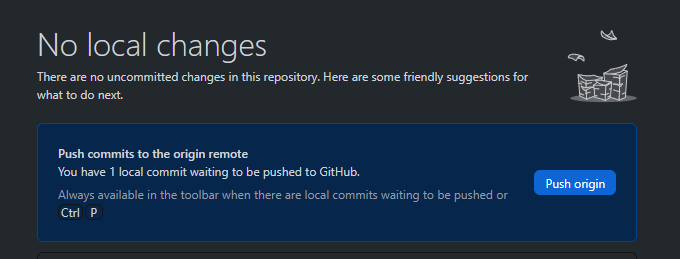
Once you've committed the changes you want, you can send these changes to your online repository by Pushing. A push takes all the committed changes on your local version and sends them to your online, personal fork. However, this is not all you need to do in order for your changes to be reviewed by a KQM staff member and sent to our live version.
Pull Request
In order for your changes on your personal fork to appear on the live version of the project, you need to submit a pull request from your personal fork to merge into the original repository. From GitHub Desktop, after you Push your local changes to your personal fork, you can create a Pull Request. After your PR is reviewed, it can take a few minutes to appear on your project or until the project is reloaded.
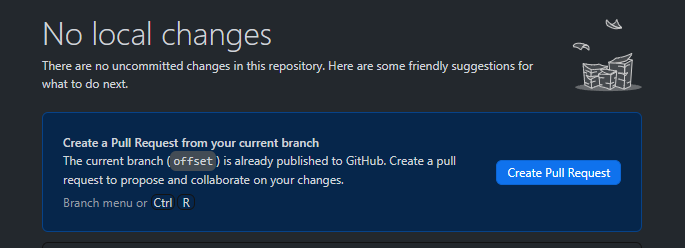
To recap, your workflow is to make the changes you want to in your Local Version using Visual Studio Code. When you save your changes on VSC, you can Commit your changes using GitHub Desktop, and Push these local changes to your personal Fork. You can submit a Pull Request to send your changes to the original repository.
Videos
Short video on how to clone/fork using GitHub Desktop.